Meeting Notes: the AI note taker
Meeting Notes records a meeting, writes down what is said as it is said, and turns the transcript into a business summary: the points raised, the objective, the goals agreed, the decisions taken, the action items, the follow-ups, the requirements, the commitments, the risks and the next meeting. The recording, the transcript and the summary are all filed on the client's record, where the whole team can find them.
This release (P1). Recording, live transcription, the review screen with the summary cards, and saving to the client. It does not yet label who said what, and it does not yet create the follow-up meetings, to-dos and emails from the summary; those are the next two stages. See What is not in this release at the end of the chapter.
26.1 Where to start a recording
| From | How |
|---|---|
| Clients | Right-click the client ▸ Record meeting notes… |
| Related panel | Right-click a contact ▸ Record meeting notes… (files against their company) |
| Interactions | Right-click ▸ Add ▸ Meeting Notes… |
| A meeting | Open the meeting and click the 🎙️ button beside the subject; the recording is linked to that meeting |
Wherever you start it, the window opens with the client (and the meeting, if you started from one) already attached, so the finished notes file themselves in the right place.
26.2 The recording window
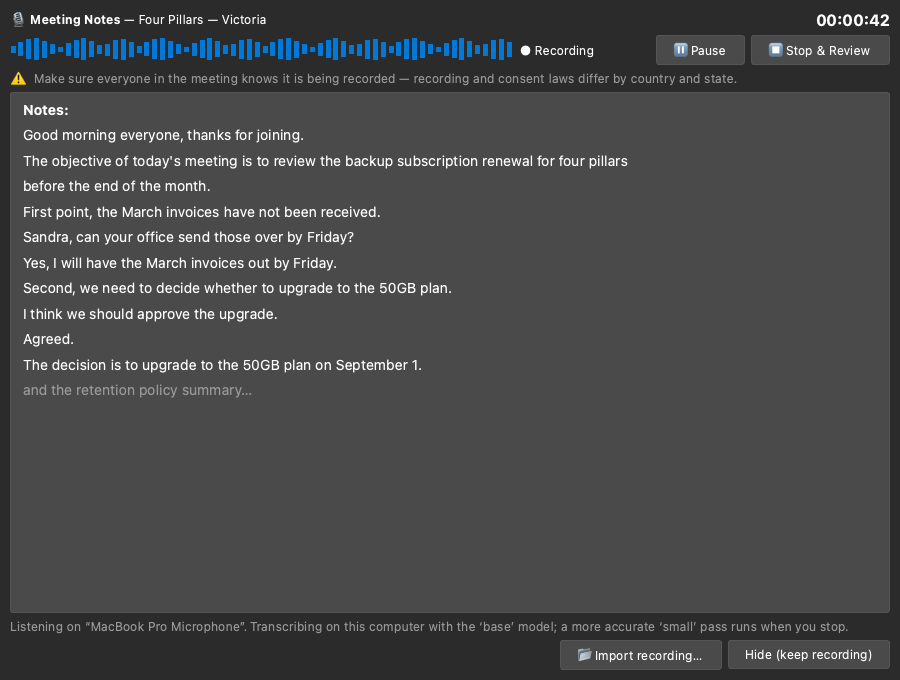
- The header shows the client and how long you have been recording.
- The sound bar moves with the sound in the room. If it is flat, TechieCRM is not hearing anything; check your microphone before you carry on.
- Notes fills in as people speak. Words still being worked out appear greyed; they turn solid once the recording is sure of them. The view scrolls itself.
- Pause stops recording (and the clock) without ending the session; press Resume to carry on. Stop & Review ends the recording and moves to the review screen.
- Hide (keep recording): and closing the window: puts the window away and keeps recording. A recording is never stopped by closing its window; use Stop & Review for that.
- Import recording… transcribes an audio file you already have (a phone recording, a conference call export) instead of recording live.
Ask permission first
The window carries this reminder every time:
⚠️ Make sure everyone in the meeting knows it is being recorded: recording and consent laws differ by country and state.
Recording a conversation without telling the other people in it is illegal in many places. Say it out loud at the start of the meeting, and stop recording if anyone objects.
26.3 The review screen
When you press Stop & Review, TechieCRM re-reads the whole recording with a more accurate model (so the final transcript is better than the live one) and then produces the summary.
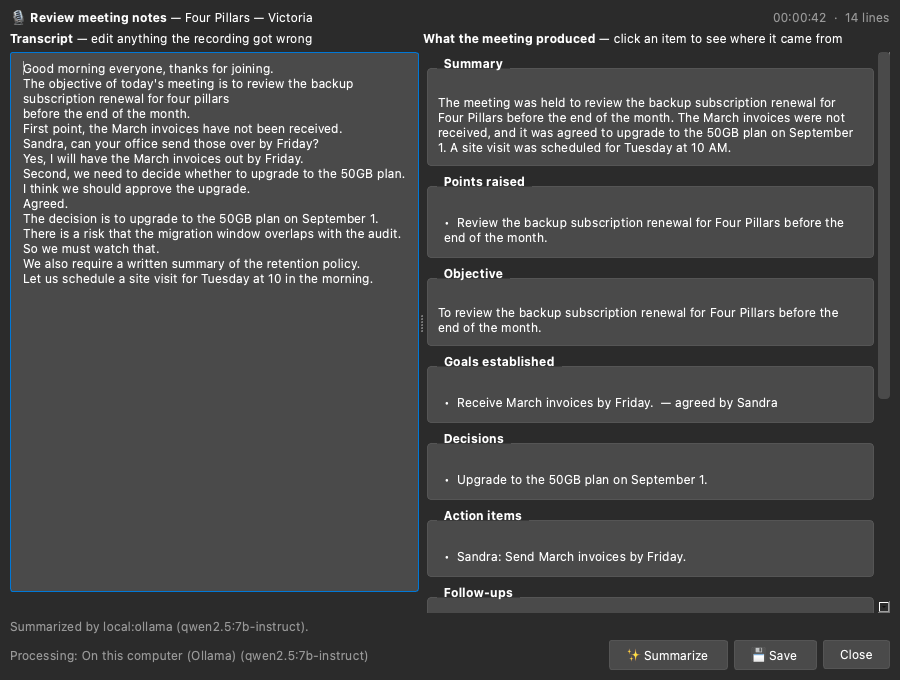
Left: the transcript. Fully editable. Fix names, figures and anything the recording misheard before you summarize; the summary is made from what is on screen.
Right: what the meeting produced. One card per kind of outcome:
| Card | What it holds |
|---|---|
| Summary | A few sentences describing the meeting |
| Points raised | The substance of what was discussed |
| Objective | Why the meeting happened |
| Goals established | What was agreed to achieve, and by whom |
| Decisions | What was decided |
| Action items | Who is doing what, and by when |
| Follow-ups | Calls, meetings or emails that should follow |
| Requirements | Things needed, raised in the meeting |
| Commitments | What each person agreed to |
| Risks & issues | What might go wrong |
| Next meeting | When it should be, and with whom |
Click any line in a card to see the exact words in the transcript it came from; they are quoted underneath the transcript and selected in it, so you can always check a summary point against what was actually said.
A card that says "Nothing recorded on this" means the meeting did not cover it. TechieCRM leaves it empty rather than making something up.
Summarize re-runs the summary (after you edit the transcript, for example). Save files the notes on the client. You can save again after further edits.
26.4 Where the notes live
Saved meeting notes appear on the client's Interactions list as Meeting Notes (🎙️), showing the date, the summary, and how long the recording ran. Double-click one to open the review screen again: transcript, summary cards and all. Filter the Interactions list to Meeting Notes to see only recordings.
The audio itself is kept on your computer (as a compressed FLAC file) so a transcript can always be checked against what was really said. The review screen and the Settings tab both show you the folder.
26.5 Where the processing happens, and your privacy
Settings ▸ Meeting Notes controls where the summary is produced:
| Setting | What it means | Cost |
|---|---|---|
| On this computer (recommended) | The summary is written by an AI model running on your own machine: the CRM AI Agent, or Ollama, whichever is running. Nothing leaves the computer. | Free: record as many meetings as you like |
| Automatically | The same local options, tried in order. If none is running it stops there and keeps your transcript; it will never switch you to the paid cloud on its own. | Free |
| TechieCRM cloud (charged per use) | For a machine that cannot run a model locally. Sends the transcript text only, never the audio. (The service checks this too: it refuses anything that does not look like transcript text.) | Billed per meeting, and needs a subscription |
| Off | Record and transcribe, but produce no summary | Free |
On the cloud CRM, the workspace has to switch this on first. Because the cloud option is billed per meeting to the workspace rather than to you, a workspace administrator enables it in the web portal under Workspace Admin ▸ Preferences ▸ Meeting Notes. Until they do, a cloud summary is refused and says so, naming the setting. Summarising on your own computer stays free and needs no permission.
Meeting Notes is built to run on your own computer, at no cost per meeting. The local option is the default, and it is the recommended one: the AI model is open source and runs on your machine, so recording a hundred meetings costs exactly the same as recording one. The cloud option exists only for machines that cannot run a model locally, and it is the only setting that is charged, which is why it says so on the button.
Nothing reaches a paid service unless you pick it. "Automatically" tries the free local options and stops. If none of them is available you get an honest "no summary yet" and your transcript is kept, rather than a charge you did not ask for.
Recording and transcription always run on this computer, whichever option you choose. The audio never leaves the machine: it is not uploaded for summarizing, and it is not part of cloud sync. The cloud option sends only the words, and the window tells you when it does.
The same tab reports, honestly, what your computer can do right now: whether the speech model is installed, whether a microphone was found, whether a local AI runtime is answering, and whether the notes can be saved. If something is missing it says so and says why; it will never show you a summary that was not really produced.
If no summary can be made (no AI runtime on the machine and no cloud subscription), the recording and the transcript are still saved in full, and you can press Summarize later once one is available. The message on the review screen points you at Settings ▸ Meeting Notes to choose a processing option. (Until the September 2026 update it named a tab called "AI & Meeting Notes", which does not exist; the tab has always been called Meeting Notes.)
Reopening an older meeting. Double-clicking a saved meeting in Interactions redraws the review screen from what was stored. If a stored summary was written in an unexpected shape by an older build, or by hand), the cards now show it as a bulleted list rather than failing to draw. Nothing is rewritten: the stored record is left exactly as it was.
If you choose the cloud and it cannot help, TechieCRM tells you which of these it is:
| What you see | What it means |
|---|---|
| "The AI add-on is in beta testing" | The cloud side of the AI features is in beta review from 1 September 2026, and this licence is not in the programme. Summarising on this computer is unaffected and still free and unlimited; use On this computer. Ask TechieCRM support to join the beta programme. See A3 ▸ Modules in beta review ▸ The add-ons. |
| "…not included in your TechieCRM plan" | Your subscription does not cover cloud summaries (or the licence key is not active). Use On this computer, or add a cloud subscription. |
| "…not available right now" | The cloud summary service is temporarily unable to run. Press Summarize again later, or switch to this computer. |
| "…rejected the transcript we sent" | Something is wrong with how we sent it; please report it. Your notes are unaffected. |
| "…could not be reached" | No connection to TechieCRM. |
In every one of those cases the recording and transcript are already saved.
26.6 What is not in this release
- Who said what. The transcript is a single "Notes" stream. Speaker labels, learning each person's voice, and the "who said this?" review step come next.
- Creating things from the summary. Turning action items into to-dos, follow-ups into meetings, and emailing each attendee their own agreed items is the stage after that.
- Cloud, web and mobile. Meeting notes are stored on the computer that recorded them. They do not yet sync to the cloud tenant, and they do not appear in the web portal or on the mobile apps.
- Recording length. There is no automatic clean-up of old recordings yet; roughly 30 MB per hour of meeting is kept on disk.